Axoline Odoo System Health
How the systray icon is calculated, who can open it, and which values you can change under Settings.
Install
Apps
Install Axoline Odoo System Health. The only dependency is Mail.
Reload
Reload the backend once so the systray icon is picked up.
Wait for the job
The scheduled action Axoline System Health: Refresh runs every 5 minutes and fills the cache.
Open the icon
It sits in the top bar. Administrators see it without an extra group.
No extra Python package is required. psutil is optional. Without it, process values are read from the operating system. That includes Odoo.sh.
Who sees the icon
Settings / Administration includes the group System Health, so administrators see the icon immediately.
Other internal users can receive that group on their own. On Odoo 19 it is the privilege Axoline System Health under Administration. On Odoo 18 it is the security category of the same name. The Odoo 18 package also installs on Odoo 17.
System Health
Open the panel, flush the mail queue, and schedule overdue cron jobs.
Settings / Administration
The same panel, plus Vacuum / Analyze and Clean orphan attachments. Both ask for confirmation.
Icon, counter and history
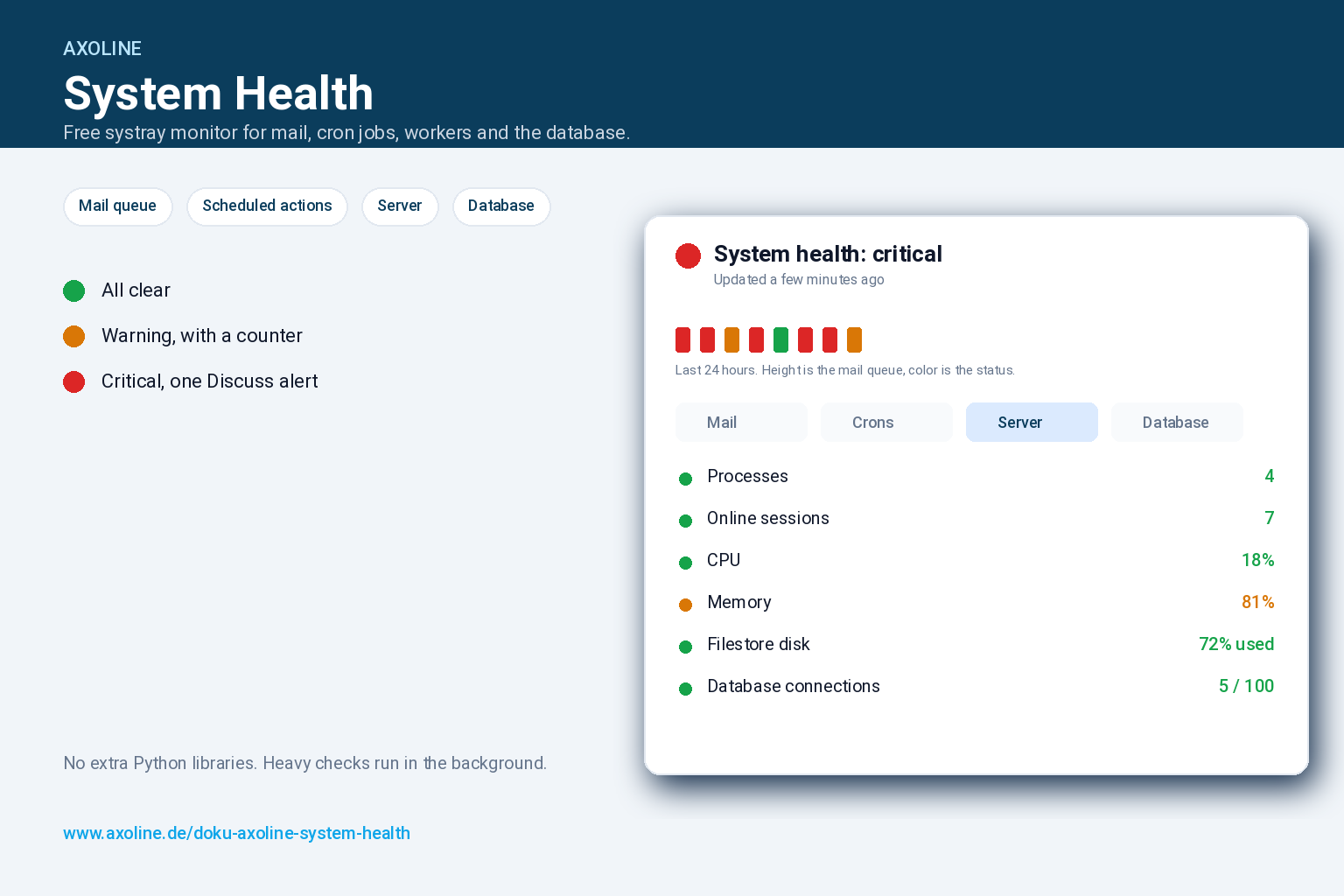
Green
Overall status is ok. The counter stays hidden.
Yellow
At least one check is a warning. The counter is the number of open items, capped at 99.
Red
At least one check is critical. The counter stays until the status leaves critical.
The bars above the tabs are the last 24 hours. Each bar is one run of the background job. The height is the mail queue compared with the peak in that window. The color is the overall status at that time. A short red bar means the queue was empty while the status was still critical. Hover a bar for the time and the queue size.
Background refresh is overdue. That line appears when the last successful write is older than 20 minutes. Check that the scheduled action Axoline System Health: Refresh is active.
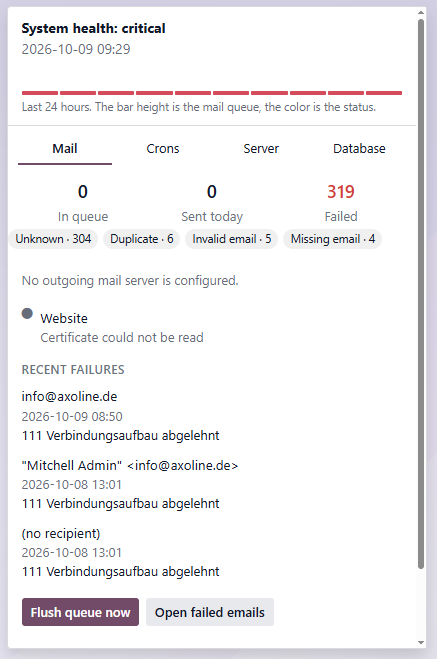
The tab shows the queue, messages sent today, failed messages and stuck outgoing messages. Failed messages are grouped by cause, for example an invalid address, a duplicate or an unknown SMTP error. The last failures list the recipient and the error text.
Flush queue now schedules the mail cron. It does not send the whole queue inside the browser. Open failed emails opens the filtered list.
Outgoing servers are probed in the background, up to eight servers. Localhost is skipped. A server from the Odoo configuration file is used only when no outgoing server is stored in Odoo.
| Mail status | When |
|---|---|
| Warning | Messages are stuck, any message is in the exception state, or the queue has mail and no outgoing server is configured. |
| Critical | An outgoing server is down, the last error looks like an authentication failure, 20 or more messages are stuck, or at least one message failed in the last 24 hours. |
An old exception backlog on its own stays a warning. It becomes critical when a new failure lands inside the last 24 hours. Stuck means outgoing mail older than the configured age, default 15 minutes.
Scheduled actions
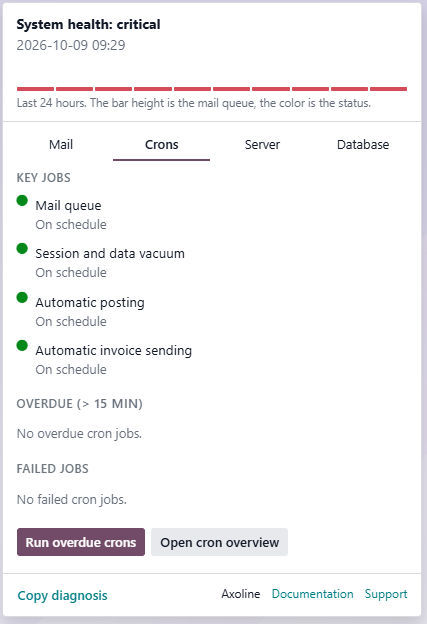
Four jobs stay in view when they exist: the mail queue, session and data vacuum, automatic posting, and automatic invoice sending. Active jobs whose name contains “backup” are added underneath.
Overdue jobs and jobs with a failure count are listed separately. Run overdue crons schedules them. The browser does not wait for the jobs to finish.
A job that still holds its lock on ir_cron longer than the configured time, default 10 minutes, is shown as stuck and counts as critical.
| Cron status | When |
|---|---|
| Warning | Any job is overdue past the grace period, default 15 minutes, or any job has a failure count. |
| Critical | A watched job is deactivated, its last run failed, or it is at least 60 minutes late. Also when any failure count is 3 or higher, or any overdue job is at least 60 minutes late. |
Server
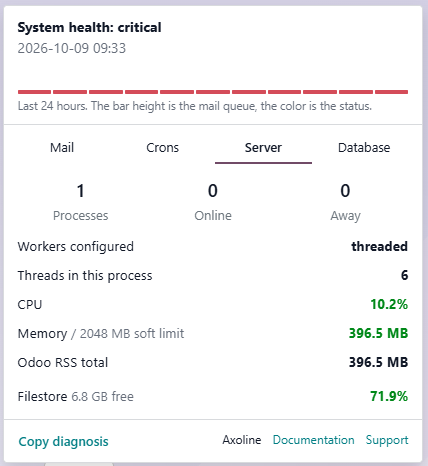
Process count, online and away sessions from the last three minutes, configured workers, and the threads of the current process. CPU and memory are compared with the soft memory limit of the hottest Odoo process.
These values come from the 5-minute job. Opening the icon does not scan the process list again.
| Server status | Default |
|---|---|
| Memory warning | 80% of the soft limit |
| Memory critical | 92% of the soft limit |
| CPU or load warning | 1.25 times the available capacity |
| CPU or load critical | 2 times the available capacity |
If process data cannot be read, the server status stays unknown and does not turn the icon red by itself.
Database and disk
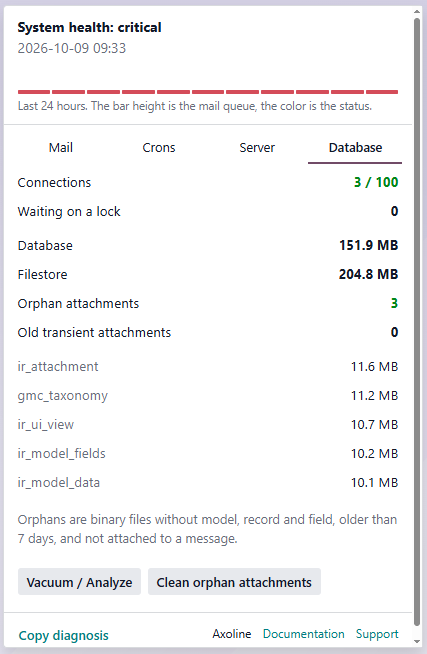
Open PostgreSQL connections against max_connections, sessions waiting on a lock, queries active for more than 30 seconds, database size, filestore size and the largest tables.
Orphan attachments are binary files with no model, no record and no field, older than the configured age, default 7 days, and not attached to a message. Cleanup removes at most 500 of them per click and is limited to administrators.
Vacuum / Analyze runs VACUUM (ANALYZE) only when an administrator starts it. The background job never vacuums.
| Check | Warning | Critical |
|---|---|---|
| Disk used | 85% | 95% |
| Database connections | 70% of max_connections | 90%, or 3 sessions waiting on a lock |
| Long query | 60 seconds | 300 seconds |
| Orphan attachments | 50 | 500 |
| Cron lock | Held for 10 minutes |
Disk space is read for the filestore, the Odoo data directory and the system disk. Two paths on the same volume are shown once.
Certificates and inbound mail
Certificates
The background job reads the certificate of each encrypted outgoing server and of the website host from web.base.url. Localhost is skipped. Servers without encryption are skipped. Warning starts 21 days before expiry. Under 7 days, or an expired certificate, is critical. A probe that cannot be read stays unknown and does not turn the icon red by itself.
Inbound mail
Confirmed incoming servers are judged by the last successful fetch stored in Odoo. Default silence is 60 minutes and counts as a warning. A stored error from the last 24 hours counts as critical. The module does not open IMAP. Passwords are neither read nor copied into the diagnosis. On Odoo 18 the error text is shown when that field exists.
Settings
Open Settings → System Health. Only Settings / Administration can change these values. A stored value wins over the default.
| Setting | Default | Meaning |
|---|---|---|
| Stuck outgoing mails | 15 minutes | Outgoing mail older than this is stuck. |
| Overdue cron grace | 15 minutes | A job is overdue when its next run is further in the past than this. |
| Orphan attachment age | 7 days | Younger files are kept. |
| Memory warning / critical | 80% / 92% | Compared with the soft memory limit. |
| Notify administrators | On | One Discuss message when the status becomes critical. |
| Disk warning / critical | 85% / 95% | Used space on filestore, data directory and system disk. |
| DB connection warning / critical | 70% / 90% | Open connections against max_connections. |
| Cron lock | 10 minutes | A granted lock on ir_cron older than this is stuck. |
| Inbound mail silence | 60 minutes | Last successful fetch older than this is a warning. |
| Certificate warning | 21 days | Days left before expiry. Under 7 days is always critical. |
The link block sets MailDesk, Layout Editor and the documentation URL shown in the panel footer. Only http, https and mailto links are accepted. Support stays support@axoline.de.
Alerts and diagnosis
When the overall status changes to critical, active internal users of Settings / Administration receive one Discuss note with the subject System health is critical. The note lists up to eight reasons, for example a recent mail failure, a down SMTP server, a full disk or an expired certificate. The next note is sent only after the status has left critical and entered it again. Turning Notify administrators off stops new notes. A note that is already open is not repeated.
Copy diagnosis puts a plain-text summary on the clipboard: status, queue, failure types, servers, inbound mail, overdue jobs, connections, long queries, disk, workers, sizes and certificates. It contains no passwords and no log excerpt. Send that text to support@axoline.de when you need help.
Languages
English is the source language. Translations are included for German, French, Italian, Spanish (Spain, Mexico and Argentina), Dutch (Netherlands and Belgium) and Portuguese (Portugal and Brazil). Install the language in Odoo and load the module translation as usual.
App Store: Odoo 19 and Odoo 18. More Axoline apps: publisher page.
Odoo is a registered trademark of Odoo S.A. Axoline, Das Steinfeld 2, 99869 Drei Gleichen.
Axoline Odoo System Health
How the systray icon is calculated, who can open it, and which values you can change under Settings.
Install
Apps
Install Axoline Odoo System Health. The only dependency is Mail.
Reload
Reload the backend once so the systray icon is picked up.
Wait for the job
The scheduled action Axoline System Health: Refresh runs every 5 minutes and fills the cache.
Open the icon
It sits in the top bar. Administrators see it without an extra group.
No extra Python package is required. psutil is optional. Without it, process values are read from the operating system. That includes Odoo.sh.
Who sees the icon
Settings / Administration includes the group System Health, so administrators see the icon immediately.
Other internal users can receive that group on their own. On Odoo 19 it is the privilege Axoline System Health under Administration. On Odoo 18 it is the security category of the same name. The Odoo 18 package also installs on Odoo 17.
System Health
Open the panel, flush the mail queue, and schedule overdue cron jobs.
Settings / Administration
The same panel, plus Vacuum / Analyze and Clean orphan attachments. Both ask for confirmation.
Icon, counter and history
Green
Overall status is ok. The counter stays hidden.
Yellow
At least one check is a warning. The counter is the number of open items, capped at 99.
Red
At least one check is critical. The counter stays until the status leaves critical.
The bars above the tabs are the last 24 hours. Each bar is one run of the background job. The height is the mail queue compared with the peak in that window. The color is the overall status at that time. A short red bar means the queue was empty while the status was still critical. Hover a bar for the time and the queue size.
Background refresh is overdue. That line appears when the last successful write is older than 20 minutes. Check that the scheduled action Axoline System Health: Refresh is active.
The tab shows the queue, messages sent today, failed messages and stuck outgoing messages. Failed messages are grouped by cause, for example an invalid address, a duplicate or an unknown SMTP error. The last failures list the recipient and the error text.
Flush queue now schedules the mail cron. It does not send the whole queue inside the browser. Open failed emails opens the filtered list.
Outgoing servers are probed in the background, up to eight servers. Localhost is skipped. A server from the Odoo configuration file is used only when no outgoing server is stored in Odoo.
| Mail status | When |
|---|---|
| Warning | Messages are stuck, any message is in the exception state, or the queue has mail and no outgoing server is configured. |
| Critical | An outgoing server is down, the last error looks like an authentication failure, 20 or more messages are stuck, or at least one message failed in the last 24 hours. |
An old exception backlog on its own stays a warning. It becomes critical when a new failure lands inside the last 24 hours. Stuck means outgoing mail older than the configured age, default 15 minutes.
Scheduled actions
Four jobs stay in view when they exist: the mail queue, session and data vacuum, automatic posting, and automatic invoice sending. Active jobs whose name contains “backup” are added underneath.
Overdue jobs and jobs with a failure count are listed separately. Run overdue crons schedules them. The browser does not wait for the jobs to finish.
A job that still holds its lock on ir_cron longer than the configured time, default 10 minutes, is shown as stuck and counts as critical.
| Cron status | When |
|---|---|
| Warning | Any job is overdue past the grace period, default 15 minutes, or any job has a failure count. |
| Critical | A watched job is deactivated, its last run failed, or it is at least 60 minutes late. Also when any failure count is 3 or higher, or any overdue job is at least 60 minutes late. |
Server
Process count, online and away sessions from the last three minutes, configured workers, and the threads of the current process. CPU and memory are compared with the soft memory limit of the hottest Odoo process.
These values come from the 5-minute job. Opening the icon does not scan the process list again.
| Server status | Default |
|---|---|
| Memory warning | 80% of the soft limit |
| Memory critical | 92% of the soft limit |
| CPU or load warning | 1.25 times the available capacity |
| CPU or load critical | 2 times the available capacity |
If process data cannot be read, the server status stays unknown and does not turn the icon red by itself.
Database and disk
Open PostgreSQL connections against max_connections, sessions waiting on a lock, queries active for more than 30 seconds, database size, filestore size and the largest tables.
Orphan attachments are binary files with no model, no record and no field, older than the configured age, default 7 days, and not attached to a message. Cleanup removes at most 500 of them per click and is limited to administrators.
Vacuum / Analyze runs VACUUM (ANALYZE) only when an administrator starts it. The background job never vacuums.
| Check | Warning | Critical |
|---|---|---|
| Disk used | 85% | 95% |
| Database connections | 70% of max_connections | 90%, or 3 sessions waiting on a lock |
| Long query | 60 seconds | 300 seconds |
| Orphan attachments | 50 | 500 |
| Cron lock | Held for 10 minutes |
Disk space is read for the filestore, the Odoo data directory and the system disk. Two paths on the same volume are shown once.
Certificates and inbound mail
Certificates
The background job reads the certificate of each encrypted outgoing server and of the website host from web.base.url. Localhost is skipped. Servers without encryption are skipped. Warning starts 21 days before expiry. Under 7 days, or an expired certificate, is critical. A probe that cannot be read stays unknown and does not turn the icon red by itself.
Inbound mail
Confirmed incoming servers are judged by the last successful fetch stored in Odoo. Default silence is 60 minutes and counts as a warning. A stored error from the last 24 hours counts as critical. The module does not open IMAP. Passwords are neither read nor copied into the diagnosis. On Odoo 18 the error text is shown when that field exists.
Settings
Open Settings → System Health. Only Settings / Administration can change these values. A stored value wins over the default.
| Setting | Default | Meaning |
|---|---|---|
| Stuck outgoing mails | 15 minutes | Outgoing mail older than this is stuck. |
| Overdue cron grace | 15 minutes | A job is overdue when its next run is further in the past than this. |
| Orphan attachment age | 7 days | Younger files are kept. |
| Memory warning / critical | 80% / 92% | Compared with the soft memory limit. |
| Notify administrators | On | One Discuss message when the status becomes critical. |
| Disk warning / critical | 85% / 95% | Used space on filestore, data directory and system disk. |
| DB connection warning / critical | 70% / 90% | Open connections against max_connections. |
| Cron lock | 10 minutes | A granted lock on ir_cron older than this is stuck. |
| Inbound mail silence | 60 minutes | Last successful fetch older than this is a warning. |
| Certificate warning | 21 days | Days left before expiry. Under 7 days is always critical. |
The link block sets MailDesk, Layout Editor and the documentation URL shown in the panel footer. Only http, https and mailto links are accepted. Support stays support@axoline.de.
Alerts and diagnosis
When the overall status changes to critical, active internal users of Settings / Administration receive one Discuss note with the subject System health is critical. The note lists up to eight reasons, for example a recent mail failure, a down SMTP server, a full disk or an expired certificate. The next note is sent only after the status has left critical and entered it again. Turning Notify administrators off stops new notes. A note that is already open is not repeated.
Copy diagnosis puts a plain-text summary on the clipboard: status, queue, failure types, servers, inbound mail, overdue jobs, connections, long queries, disk, workers, sizes and certificates. It contains no passwords and no log excerpt. Send that text to support@axoline.de when you need help.
Languages
English is the source language. Translations are included for German, French, Italian, Spanish (Spain, Mexico and Argentina), Dutch (Netherlands and Belgium) and Portuguese (Portugal and Brazil). Install the language in Odoo and load the module translation as usual.
App Store: Odoo 19 and Odoo 18. More Axoline apps: publisher page.
Odoo is a registered trademark of Odoo S.A. Axoline, Das Steinfeld 2, 99869 Drei Gleichen.